 Čeština (cs-CZ)
  Dansk (da-DK)
  Deutsch (de-DE)
  English (en-GB)
  Français (fr-FR)
It might be difficult to get your videos and music onto all the different devices you use. How can you be sure that your Linux®, Mac®, Xbox® or Windows® PC can play your files? This article could help you find the perfect solution.
Succintly
If reading this whole article seems overwhelming, here's a summary. To prepare your key or disc, you'll still need to do a bit of reading 😀.
- If you wish to share your files with most devices and none of the files are larger than 4GB, you can choose FAT32.
- If you have files larger than 4GB, but still want fairly good support on all devices, exFAT is a good solution.
- If you have files larger than 4GB and share mainly with Windows® or Linux® PCs, NTFS is the sensible choice.
- If you have files larger than 4GB, your main machine is a Mac® and you share mainly with Mac®s, choose HFS +.
Main principles
For most users, file systems are typically something between unknown and something to be ignored, but when you want to use the same USB stick on different types of device to share files, the question becomes crucial and deserves a bit of consideration.
The most common file systems are FAT32, exFAT and NTFS on Windows®, APFS and HFS+ on macOS® and EXT4 on Linux®, although you may come across others. But it can be very confusing to understand which devices and operating systems support which file systems, especially when all you want to do is transfer some files or keep your collection readable by all the devices you use.
We will therefore have a look at the major file systems and find the best solution for formatting your USB flash drive.
File system issues
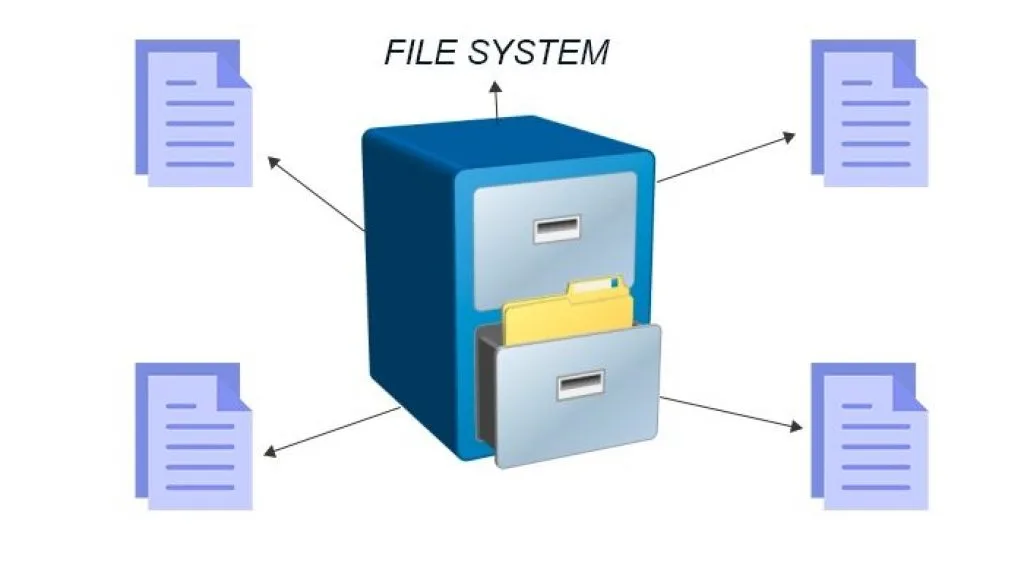
A file system is a definition of how files are organised on a storage device. All filesystems have their own logic for converting binary data (0s and 1s) stored physically into something readable and understandable by the operating system.
Given that these file systems are fundamental to the operating system's ability to make sense of the data, an operating system cannot read data from a disk if it does not support the file system with which the disk is formatted. When you format a disk, the file system you choose essentially governs which devices can read from or write to the disk.
Depending on whether you're a business or an individual, you may have several PCs or machines of different types, Windows®, macOSV, Linux® or Xbox® or even PlayStation®, Raspberry Pi®... And if you're transporting files to a friend's house or when you're travelling, you never know on which kind of system you'll be able to use those files. Because of this diversity, you have to format USB sticks or portable disks so that they can easily be read by the different operating systems you might be using.
But in order to make the proper choice, you will need to understand the two key factors that can ultimately affect your choice of filesystem: portability and file size limits. We will look at these two factors in relation to the most common file systems:
- NTFS: The NT filesystem (NTFS) is the default filesystem for modern versions of Windows®.
- HFS +: The hierarchical filesystem (HFS +) is the filesystem that some versions of macOS® use by default.
- APFS: Apple®'s proprietary file system was originally designed to replace HFS +, with a focus on flash drives, SSDs and encryption. APFS was released with iOS® 10.3 and macOS® 10.13 and will become the compulsory file system for these operating systems.
- FAT32: File Allocation Table 32 (FAT32) was the industry standard Windows® file system prior to NTFS.
- exFAT: Extended File Allocation Table (exFAT) leverages FAT32 and offers a lightweight system without all the bloat of NTFS.
- EXT 2, 3 and 4: The Extended File System (EXT) was the first file system specifically designed for the Linux kernel (although it also has lots of other file systems)..
Portability
It would be reasonable to expect modern operating systems to be able to natively support file systems from other operating systems, but this is far from the reality. For instance, macOS® can read - but not write - disks formatted with NTFS. Windows® won't even acknowledge disks formatted with APFS or HFS+.
Most Linux® distributions (e.g. Ubuntu, Debian...) are delivered ready to handle this filesystem nightmare. Moving files from one filesystem to another is a standard process for Linux (most recent distributions support NFTS and HFS+ natively, or support for a large number of file systems can be made available in a matter of seconds).
To make the situation even more challenging, home game consoles (Xbox 360®, Playstation 4®) only provide extremely limited support for most fileystems and only provide read access to USB sticks.
To better understand whtt would be he best file system to use depending on your needs, this table provides a summary of features.
| Filesystem | Windows 10/11 | macOS (10.13 & +) | Linux | Playstation 4 | Xbox 360 / One |
|---|---|---|---|---|---|
| NTFS | Read only | / | |||
| FAT32 | |||||
| exFAT | (with MBR, not GUID) | / | |||
| HFS + | (with Paragon HFS+) | ||||
| APFS | (read only) | ||||
| EXT 2, 3, 4 | with WSL |
This table illustrates the native capabilities of each operating system to handle these various filesystems. Windows® and macOS® both have applications that can help read unsupported formats, but support may be limited or absolutely erratic. Note that Linux® is the only operating system that can handle everything.
The main thing we can gather from this table about portability is that FAT32 (a notably old and somewhat limited system) is compatible with almost all devices. This makes it an outstanding candidate to be the file system of choice for most USB sticks, as long as you can live with FAT32's file size limits explained in the next section.
Limits on file size and volume
FAT32 was designed and developed during the 1990s and introduced into Windows® 95. It was based on older FAT file systems designed for MS-DOS® computers.
The current disk sizes were only theoretical at that time, so it sounded ridiculous to the engineers that anybody would ever need a file of more than 4 GB. However, with non-compressed, high-definition video files often exceeding 20GB, users are facing this challenge.
Today's state-of-the-art file systems have limits that may seem excessive in relation to the disk sizes available, but they are designed to support future developments in hardware. It should also be noted that, thanks to LVM (Logical Volume Manager), Linux allows you to create partitions that span across a large number of physical disks, a feature used on huge servers and which makes it completely independent of the physical limits of the hardware.
Compared with the competition, FAT32 is clearly becoming outdated in terms of file size limits.
| Filesystem | File size limit | Vomume size limit (partition) |
|---|---|---|
| NTFS | 8 PB | 8 PB |
| FAT32 | 4 GB | 8 TB |
| exFAT | 8 PB | 64 PB |
| HFS + | 4 PB | 8 PB |
| APFS | 4 PB | 16 PB |
| EXT 2, 3 | 16 GB | 32 TB |
| EXT 4 | 16 TB | 16 PB |
En comparant ces limites avec la portabilité requise précédemment et en fonction de vos besoins, exFAT et NTFS sont les formats recommandés.
Formatting a drive
The formatting procedure for a drive differs from one operating system to another. We can't cover them all here, but we'll provide a few general guidelines:
If you have a low-capacity USB flash drive (64GB or less), the FAT32 standard, despite its limitations, remains the preferred solution with near-universal compatibility if the limit of 4GB per file is all you need.
If you're talking about a USB stick larger than 64 GB or an external disk, you need to evaluate your requirements. If you only share your data with Windows® computers, choose NTFS without second thoughts. If your PC is running iOS® or MacOS®, and you only share with the Apple® ecosystem, HFS+ is the correct choice. If you need higher portability, exFAT is a workable solution.
We have not even mentioned Linux. This operating system can practically read everything, so you have total freedom. But if you want to interchange data with Windows® or Mac®, use exFAT or NTFS.